
Top 10 AI-Powered Motion Graphics and Animation Tools in 2026
Looking for top AI motion graphics and animation tools in 2026? This guide breaks down the top AI-powered animation tools available right now, from generative video platforms to browser-based motion design apps, so you can pick the right AI motion graphics tool for your workflow, budget, and skill level.
Introduction
Now,AI motion graphics tools are making it much easier to make an idea into an actual animation. Create captivating animated videos in minutes with just a simple text prompt, image or video. You can let AI do most of the heavy lifting and focus on the creative side, instead of spending hours on every single move, transition or visual effect.
These tools can be used for many purposes such as social media videos, YouTube content, ads, presentations, animated characters and branded visuals. They also accelerate the creative process for designers and video makers, by handling mundane tasks and making it easier to try out different ideas.
The question is which tool should be used . In 2026 there are so many AI animation tools available and they all work a bit differently. Some are focused on AI video generation, others are more suited for motion graphics, character animation, video editing or branded content.
So, which AI animation tool is worth trying, and what can each one actually help you create?
Here is a list of the Top 10 AI-Based Motion Graphics and Animation Tools in 2026 also with their key features, Pricing, Pros and Cons and what each tool is best for.
What Are AI-Powered Motion Graphics and Animation Tools?
AI motion graphics tools are software platforms that use machine learning models to automate some or all of the animation process.
Instead of manually placing keyframes on a timeline, you typically describe what you want in plain language, upload a reference image, or drop in existing footage, and the AI generates the movement, transitions, or full video clip for you.
Broadly, these tools fall into a few categories:
- Generative video tools (Runway, Pika, Luma) that turn text or a still image into an animated clip using diffusion models
- Browser-based motion design tools (Jitter, Cavalry) that speed up traditional keyframe animation with presets, templates, and procedural logic
- AI-assisted editors (Kapwing) that add motion graphics, captions, and effects directly inside a video timeline, often through natural-language commands
- All-in-one design suites (Canva Magic Studio) that bundle AI animation into a broader design and content toolkit
The common thread is that AI automates tasks such as motion generation, in-between frames, masking, and format resizing, while the human stays in charge of composition, pacing, and storytelling.
How to Choose Top AI Motion Graphics Software in 2026
There are many AI motion graphics tools available today, but not every tool will be right for you. The best one depends on what you want to create, how much experience you have, and how much you want to spend.
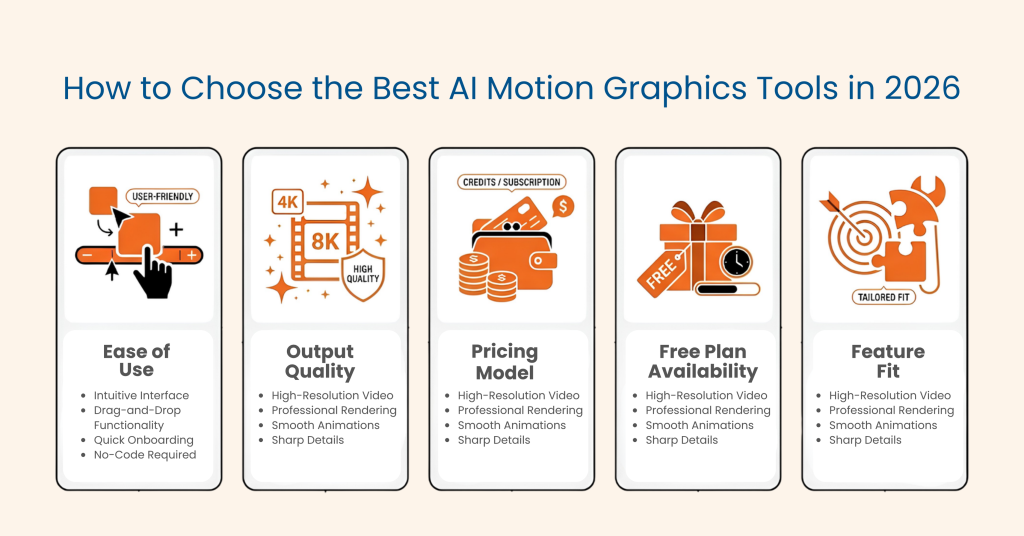
Here are a few things to look at before making your choice:
- User-friendliness: If you are new to AI motion graphics or do not have a professional designer on your team, choose an easy tool like Jitter or Canva.
- Output quality: Take a look at the videos and animations the tool can create. You should also check if it can keep characters, objects, and images looking consistent. Runway and Luma are good options if you want realistic AI video.
- Pricing: Some AI video tools use credits for each generation. Before choosing a plan, check how many videos or generations you can actually create with it.
- Free plan: Many tools offer a free plan, trial, or free credits. However, the limits can be different. Check what you get before signing up.
- Features: Start by thinking about what you actually need. Do you want to create videos, animations, character animations, templates, or social media content? Pick a tool that has the features you will use most.
1. Adobe After Effects (with Firefly AI tools)

Adobe After Effects is a popular tool for creating professional motion graphics, animations, and visual effects. It gives designers a lot of control over how their videos look and move.
In 2026, Adobe added new AI features to make some tasks easier. One of them is Object Matte, which uses AI to help select, separate, and track people or objects in a video. Adobe also introduced an AI Assistant in the After Effects Beta, which helps users work with AI features inside the app.
If you want to use Adobe’s generative AI features, keep in mind that the number of AI credits depends on your plan. The standalone After Effects plan includes 25 monthly generative credits. Creative Cloud Pro includes After Effects, more than 20 other Adobe apps, and 4,000 monthly generative credits, along with premium Firefly features such as text-to-video.
- Pros: Gives you detailed control, useful AI features, strong 3D tools, and many plugins.
- Cons: It can be difficult for beginners to learn. Some advanced Firefly AI features require Creative Cloud Pro and use credits.
- Price: US$22.99/month for the standalone Individual plan. Prices can vary by country and may change over time.
- Best for: Professional motion designers, video editors, and studios that need high-quality and detailed work.
2. Runway (Gen-4.5)
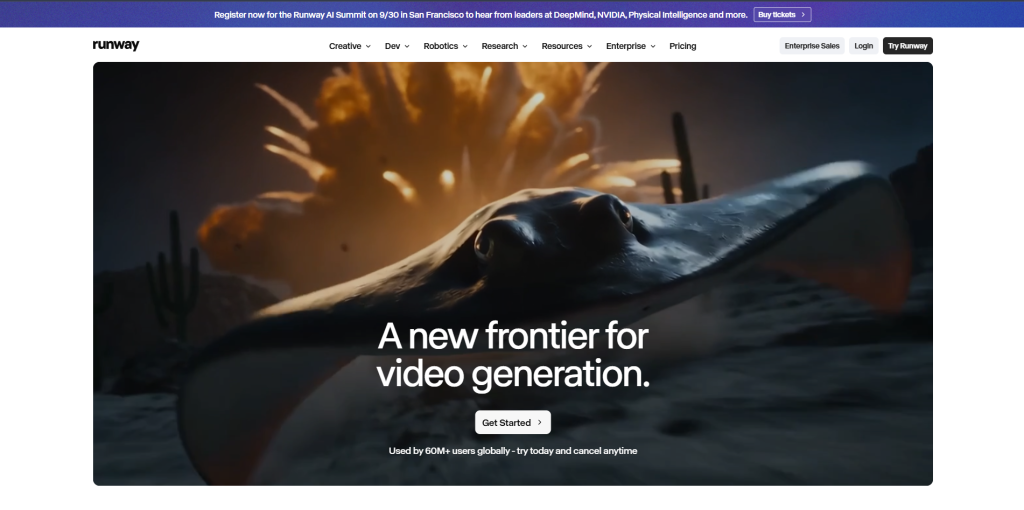
Runway is an AI video creation platform that helps you make high-quality videos from text, images, and other inputs. It has become a popular choice for creators who want to make cinematic-looking AI videos.
Its Gen-4 References feature helps keep characters, objects, and locations looking similar across different scenes. Runway also gives users access to other AI video models, including Google Veo and Kling, from the same platform.
- Pros: Good character and scene consistency, access to several AI video models, and useful for creating cinematic videos.
- Cons: The credit system can be confusing. If you create and edit many videos, you may use your credits quickly.
- Price: With annual billing, Standard costs US$12/month, Pro costs US$28/month, and Max costs US$76/month. Max replaced the Unlimited plan for new subscribers in May 2026.
- Best for: Creators and agencies making AI videos for ads, social media, and creative projects.
3. Pika
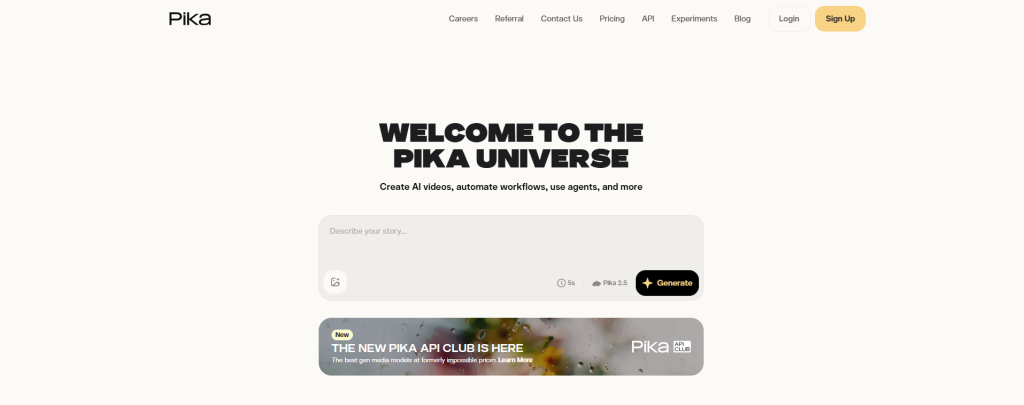
Pika (formerly Pika Labs) is an AI video tool made for creating short and fun video clips. Its popular Pikaffects feature lets you add creative effects, such as making objects melt, explode, or inflate. This makes Pika a good choice for eye-catching social media content.
- Pros: Fast video generation, fun and creative effects, and an easy-to-use interface.
- Cons: The results are usually more creative and stylized than realistic. Creating longer videos or using higher video quality can also use more credits.
- Price: Pika offers a free plan with 250 initial credits, which can refill up to 30 credits per day. Paid plans start at around US$8/month with annual billing and go up to around US$76/month for the highest plan.
- Best for: Social media creators who want to make short videos for TikTok, Instagram Reels, and similar platforms.
4. Luma
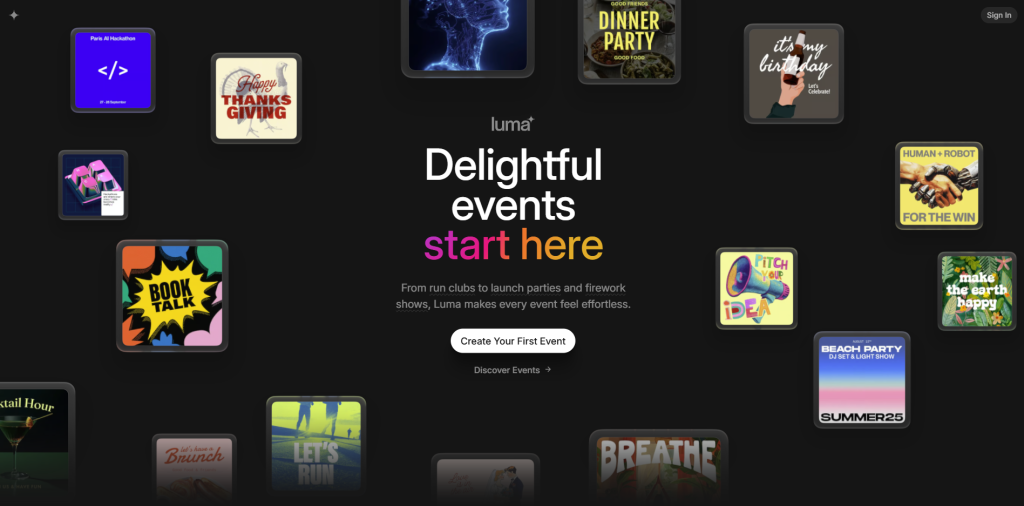
Luma is an AI tool for creating realistic videos and visual content. Its original video product, Dream Machine, and its newer Luma Agents platform are related but have different pricing. In early 2026, Luma moved its video models into the larger Agents platform.
Luma’s current pricing page lists three plans: Plus ($30/month), Pro ($90/month), and Ultra ($300/month). There is no free plan listed at the moment. Older articles may still mention a free Dream Machine plan, but that information is based on the older product setup.
- Pros: Realistic video results, fast generation, and access to Luma’s own models and other AI video models in one platform.
- Cons: There is no listed free plan. Heavy users may also use their credits quickly.
- Price: Plus costs $30/month, Pro costs $90/month, and Ultra costs $300/month. Annual billing offers a discount.
- Best for: Teams that need realistic AI videos for ads, product content, and other creative projects.
5. Jitter
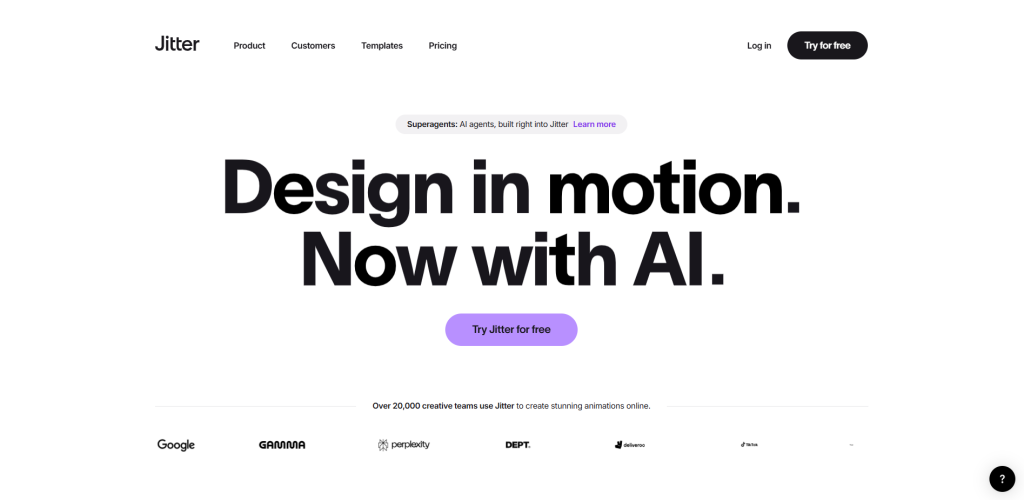
Jitter is a browser-based motion design tool that works well with Figma. It has a simple editor that feels similar to Figma, along with ready-made animation presets. You can also use its infinite canvas to work on different versions of a design at the same time.
Jitter’s pricing includes Free, Pro, Max, and Ultra plans. The exact prices may change, so it is best to check the official pricing page before choosing a plan.
- Pros: Easy to learn, works with Figma, and lets you export designs as videos, GIFs, and Lottie files.
- Cons: It has fewer advanced motion controls than After Effects and is not the best choice for complex character animation.
- Price: A free plan is available. Pro plans are estimated at around $11–$62/month.
- Best for: Marketing and brand teams that want to create professional-looking motion graphics without a specialist.
6. Canva Magic Studio
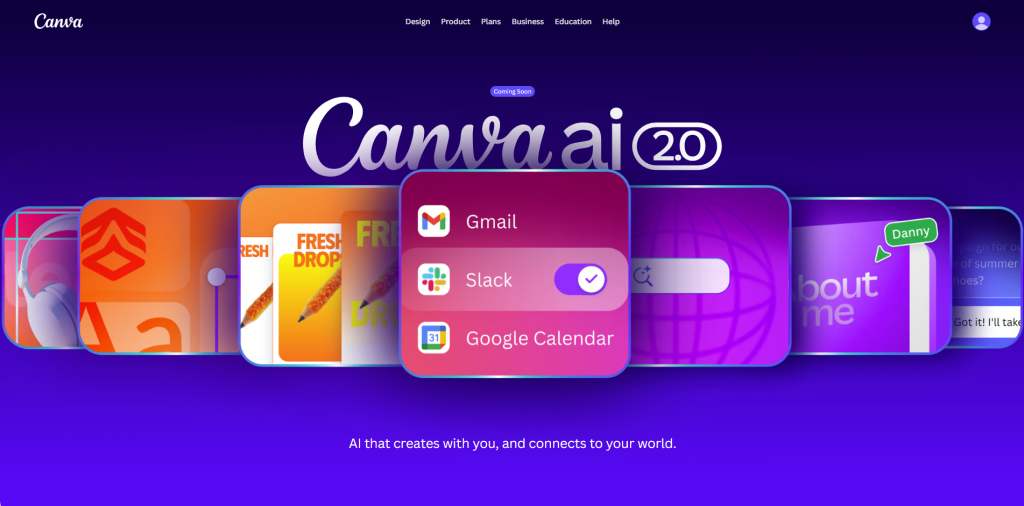
Canva Magic Studio brings Canva’s AI features into one place. You can use it for tasks such as removing backgrounds, creating animations, and resizing designs for different social media platforms.
It is especially useful for people who want to create designs, videos, and simple animations without using complicated software.
- Pros: Very easy for beginners, lots of templates, and one subscription gives you access to design, video, and animation tools.
- Cons: The AI credits are shared across Magic Studio features, so heavy users may use them quickly.
- Price: Canva Pro costs US$180/year for one person, which is about $15/month when billed annually. Business costs US$250/year per person.
- Best for: Small businesses, solo marketers, and beginners who want design, video, and animation in one tool.
7. Cavalry
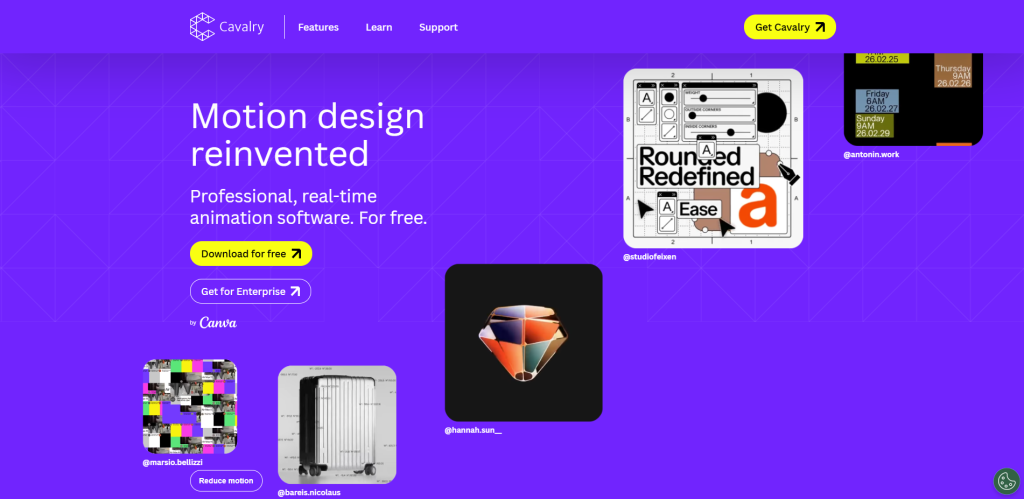
Cavalry is a motion design tool that sits between traditional tools like After Effects and more advanced node-based software. It is especially useful for creating animated data, charts, and infographics.
In 2026, Canva acquired Cavalry. Later, Cavalry made the full application free for individual users, including for commercial projects. Studios still need a paid Canva account.
- Pros: Great for creating data-based animations, making many design variations, and seeing changes in real time.
- Cons: It can take some time to learn, especially for beginners. It may also be more complicated than After Effects for simple text animations.
- Price: Free for individual users, including commercial projects. Studios need a paid Canva account.
- Best for: Designers who create data visualizations, animated infographics, or many versions of the same branded content.
8. DeepMotion

DeepMotion uses AI to turn normal video footage into 3D character animation. You do not need a special motion-capture suit or a professional motion-capture studio. Simply use video footage, and the AI can turn the movement into animation for a 3D character.
- Pros: No special motion-capture suit or markers are needed. It is useful for avatars, game scenes, and virtual presenters.
- Cons: It is mainly designed for character animation, so it is not as useful for general motion graphics.
- Price: DeepMotion offers a free account with no credit card required. It does not expire and includes up to 60 seconds of animation per month for personal, non-commercial use. Paid plans offer commercial licensing and more credits. Check the official pricing page for current paid-plan prices.
- Best for: Teams creating AI avatars, virtual influencers, and 3D character content.
9. Renderforest
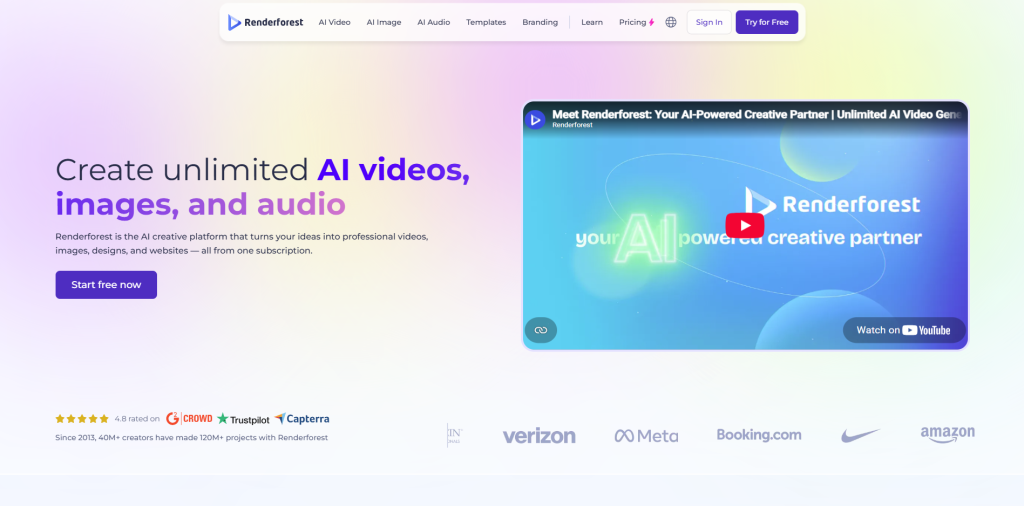
Renderforest is mainly a template-based video tool. Instead of creating everything from scratch, you can choose ready-made scenes and templates to create branded videos, intros, and explainer videos.
This makes it a good option for people who do not have much design experience.
- Pros: Easy to use, consistent results, and requires very little design experience.
- Cons: You have less creative control than with generative AI tools, and some videos may look similar to other template-based content.
- Price: A free plan is available. Lite costs $12/month, Pro costs $39/month, and Business costs $59/month. Monthly billing can cost more than annual billing.
- Best for: Small businesses that need simple and consistent branded videos without hiring a professional designer.
10. Kapwing
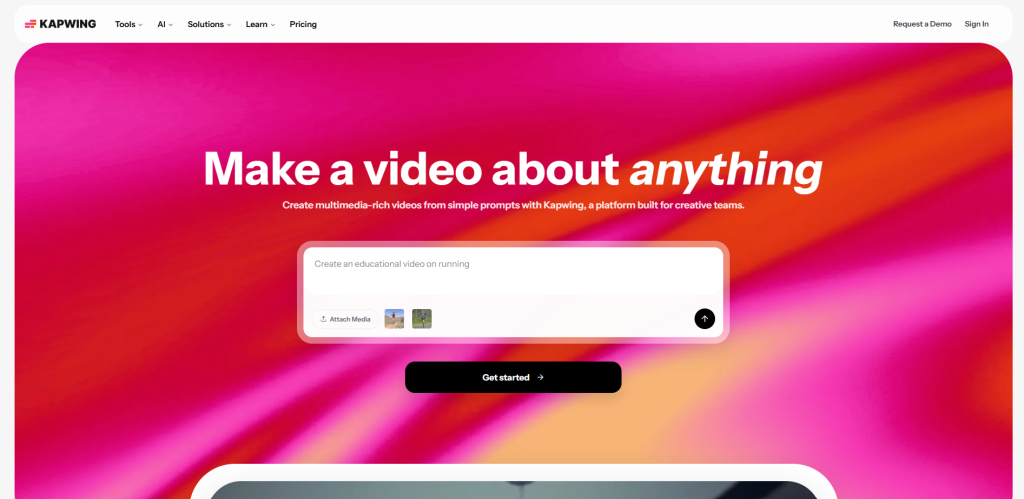
Kapwing is a browser-based video editor with several AI features. It can help you add subtitles, cut videos, and create captions with motion effects. It is a good middle option for people who want more than a basic video editor but do not need a full motion graphics program.
- Pros: Useful free plan, strong AI caption and subtitle features, and works directly in your browser.
- Cons: Free videos have a watermark and are limited to 720p and 1 minute. Team costs can also increase because pricing is per user.
- Price: A free plan is available. Pro costs $16/month when billed annually or $24/month when billed monthly.
- Best for: Creators who want to quickly edit social media videos, add captions, and use simple motion graphics.
Common Mistakes to Avoid
- Treating AI output as final. Generative clips almost always need color grading, pacing adjustments, or a second pass skipping that step is the fastest way to make content look unfinished.
- Ignoring credit limits until it’s too late. Because most tools are priced by credits rather than flat access, it’s easy to underestimate real monthly cost until you hit a wall mid-project.
- Picking one tool for every job. Many production workflows combine a generative tool for raw movement with a separate tool for editing and branding, rather than expecting one platform to do everything.
- Skipping the free tier or trial test. Every tool behaves differently in practice than its marketing page suggests testing on a free plan or trial first avoids paying for the wrong fit. Remember that “free” can mean an ongoing free tier, a time-limited trial, or bundled credits they’re not interchangeable.
- Forgetting commercial usage rights. Free tiers and lower-cost plans often restrict commercial use, require attribution, or add a watermark. Always check the specific plan’s terms before using AI-generated footage in client or brand work.
Conclusion
The best AI motion graphics tools of 2026 aren’t about picking one winner they’re about matching the right tool to the right job and recognizing that generative video tools and motion-design tools solve different problems.
After Effects offers the deepest professional control, Runway and Luma are among the strongest current options for generative video quality, Pika is a fast pick for stylized social effects, and Canva or Jitter make sense when ease of use matters more than raw power. Many production workflows in 2026 combine two or three of these tools rather than relying on a single platform.
Start with a free tier or trial, test it against your actual workflow, and scale up only where the paid features genuinely save time.Choosing the right AI motion graphics tools 2026 depends on your needs and workflow.
Frequently Asked Questions
What are the best AI motion graphics tools in 2026?
Some of the best AI motion graphics tools in 2026 are Runway, Jitter, Adobe After Effects with Firefly, Pika, and Luma. The right tool depends on your needs and skill level.
Are there free AI animation tools?
Yes. Several AI animation and motion-design tools offer free plans or free tiers, including Canva Magic Studio, Jitter, Pika, Cavalry for individual users, Renderforest, and Kapwing. However, free plans typically come with limitations such as reduced features, watermarks, credits, or export restrictions. Runway also offers a free plan, but its current free allocation is a one-time 125 credits rather than a recurring monthly allowance.
Can AI replace After Effects?
No, AI cannot fully replace After Effects. AI tools are great for speed and simple work, but After Effects is still better for detailed and professional projects.
Which tool is best for beginners?
Canva Magic Studio and Jitter are the best tools for beginners because they are easy to use and do not need much experience.
Which AI tool is best for YouTube creators?
Pika and Runway work very well for YouTube creators. They help make short and eye-catching videos quickly.